Easy GoG ePayslip Password Reset Guide 2026
If you have forgotten your password or are locked out of your GoG ePay Services account this guide will get you back in within minutes. The CAGD portal has a straightforward password reset process built in — all you need is your Employee Number, your registered mobile number, and a stable internet connection.
This guide walks through every reset step clearly, explains what to prepare before you start, and gives you fixes for the most common problems Ghana government employees run into including OTP delays, Ghana Card errors, and locked accounts.
Why You Need GoG ePayslip Password Reset
There are several reasons why you might need to reset your password on the GoG ePay Services portal. You may need to reset your GoG ePay Services password if:
Resetting your password helps you regain access and keep your account secure.
GoG ePayslip Password Reset Requirements
Before you start the GoG ePay Services password reset process on gogepayservices.com, make sure you have the following ready
These are needed to verify your identity and keep your account secure.
Easy Steps to Reset Your GoG ePay Services Password
Follow these simple steps to reset your password on the ePayslip portal. It only takes a few minutes.
Step 1: Open GoG ePayslip Password Reset Page
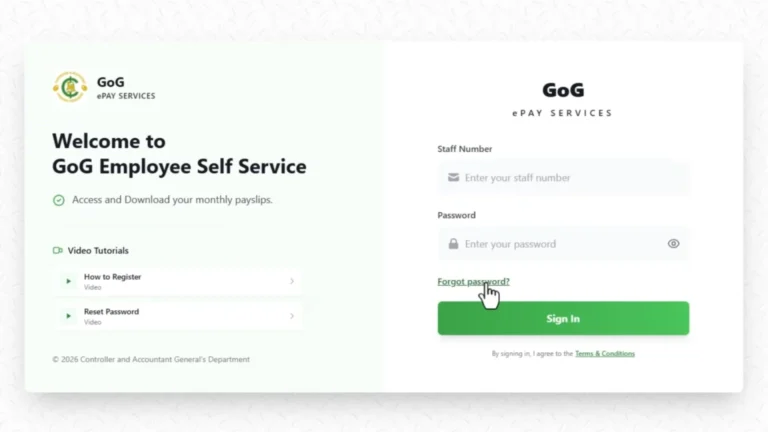
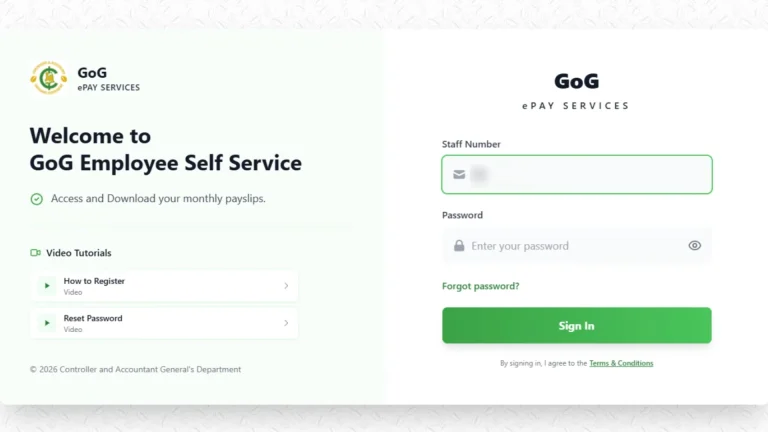
Open gogepayservices.com directly in your browser to begin the GoG ePay Services password reset process.
On the login page, you will see:
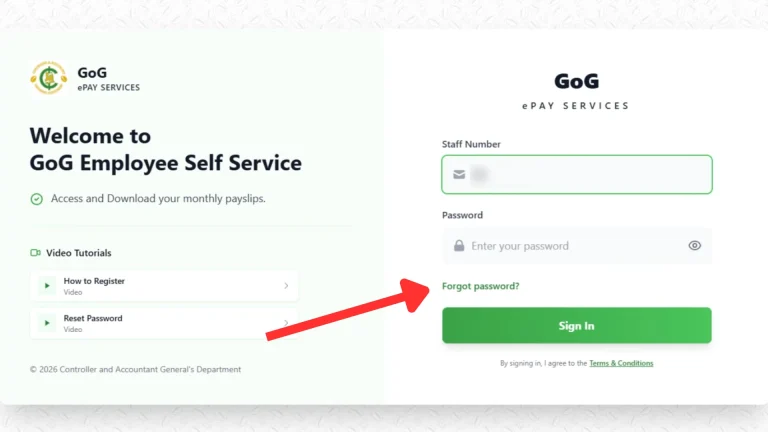
Step 2: Click on “Forgot Password”
On the login page, click the “Forgot Password” option below the login button.
This will take you to the password reset page, where you can securely start the process of creating a new password.
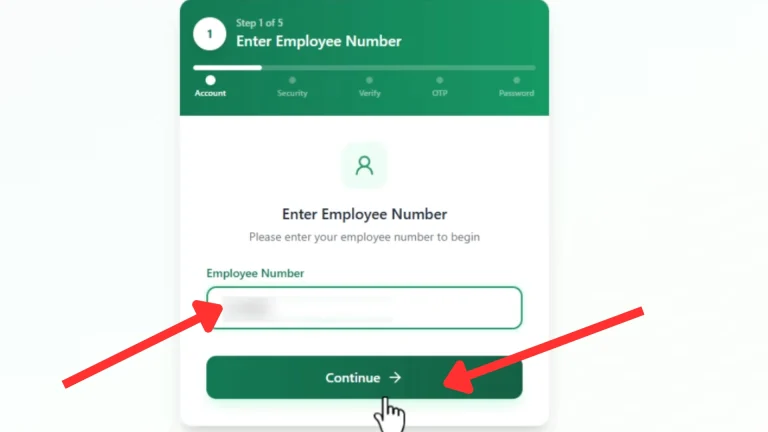
Step 3: Enter Your Employee Number
On the password reset page, enter your Employee Number in the required field.
Make sure to:
This ensures your request is processed correctly without delays.
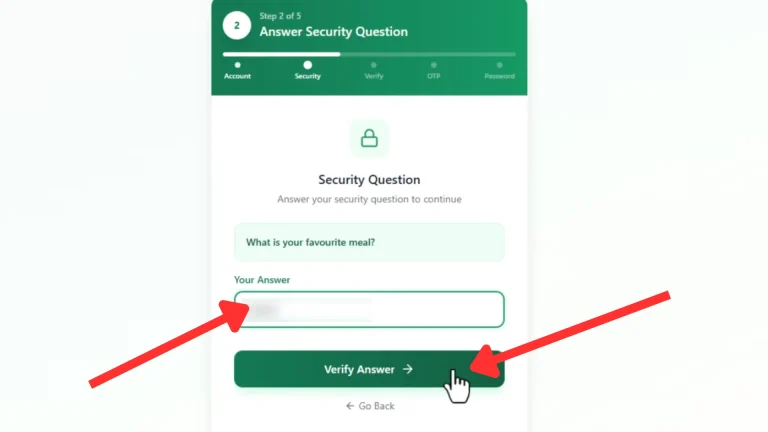
Step 4: Answer Your Security Question
You will now be asked to answer your security question.
Enter the same answer you provided during registration.
Make sure to:
This step is used to verify your identity before continuing.
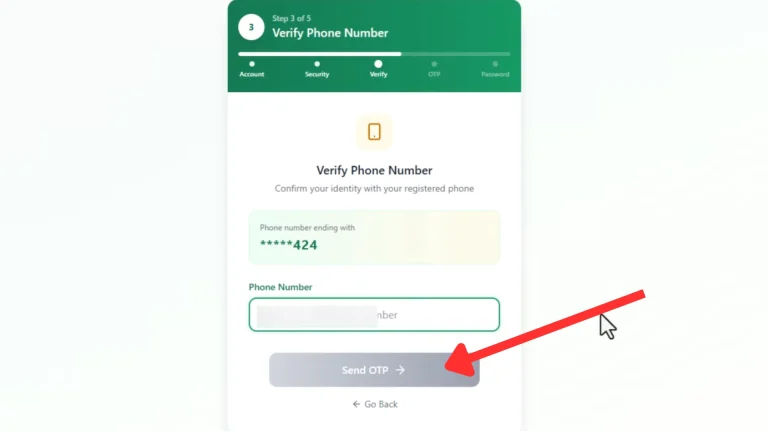
Step 5: Enter Your Registered Phone Number
Enter your registered mobile number linked to your ePayslip account.
This number is required because an OTP will be sent to it for verification.
After entering the number, click Continue or Submit.
Make sure:
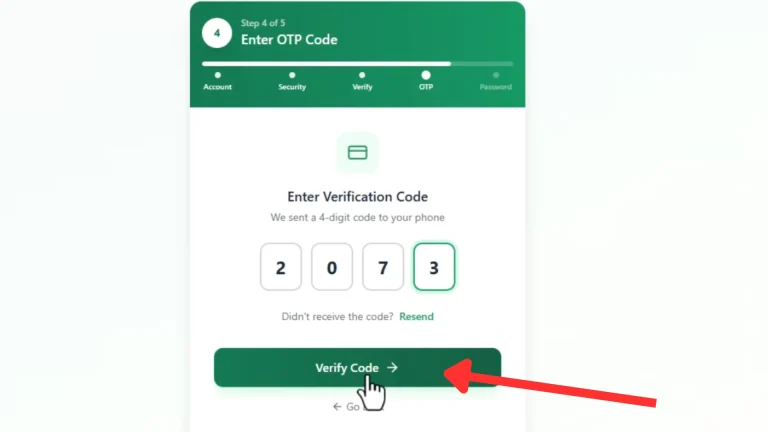
Step 6: Enter GoG ePayslip Password Reset OTP Code
You will receive a One-Time Password (OTP) on your registered mobile number via SMS.
Check your messages and enter the OTP in the required field on the website.
For example: 458921
Make sure to:
This step verifies your identity securely.
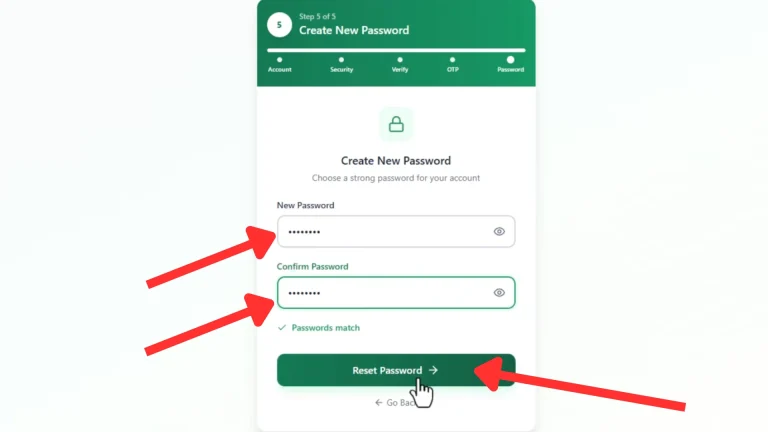
Step 7: Create New GoG ePayslip Password
Now set your new password in the New Password and Confirm Password fields.
Your password must be:
Then re-enter the same password in the Confirm Password field.
Make sure both passwords match exactly before proceeding.
Step 8: Click Submit Button
After setting your new password, click the Submit button.
The system will process your request and reset your password.
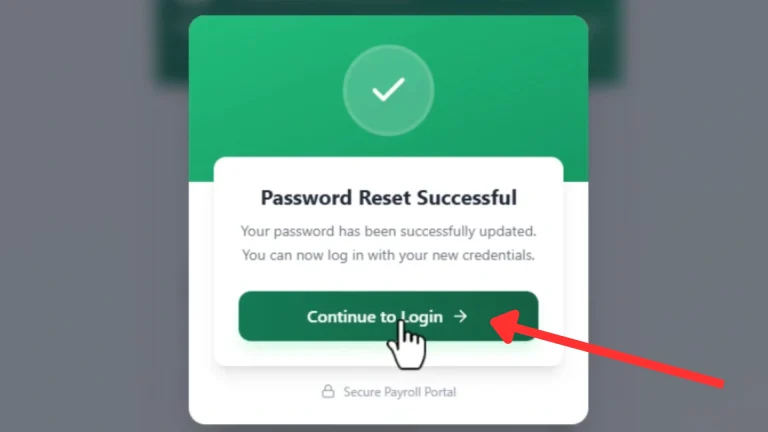
Once completed, you will see a confirmation message like:
“Password reset successful.”
Step 9: Login with Your New Password
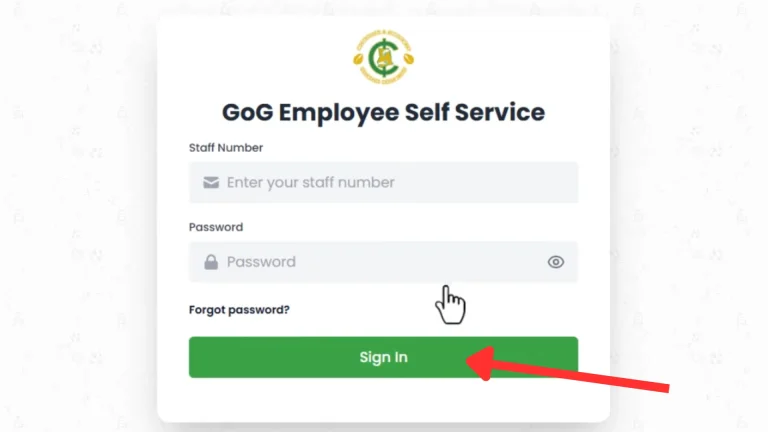
Return to the login page and sign in using your updated details.
Enter:
Then click Login to access your ePayslip account successfully.
Tips to Secure Your ePayslip Account
After resetting your password, take a few minutes to make sure your account is properly secured. These simple habits go a long way:
GoG ePayslip Password Reset Helpdesk Support
If you need direct assistance, contact the CAGD helpdesk:
📞 0242162781
📞 0552925395
📞 0245289771
📞 0505660003
📞 0243340355
You can also contact your HR office or Salary/Accounts Department directly.
Common GoG ePayslip Password Reset Problems
If you are running into issues during the reset process, here are the most common problems Ghana government employees face and how to fix them:
OTP Not Received:
If you do not receive the OTP, wait a few minutes as SMS delivery can sometimes be delayed. Make sure your mobile signal is strong and your number is active. If the issue continues, request a new OTP.
Incorrect Employee Number:
Entering the wrong Employee Number will stop you from accessing or resetting your account. Double-check the number on your appointment letter or old payslip. If the error keeps appearing, our Employee Number Not Found guide covers all the known causes and fixes.
Account Locked:
Your account may be temporarily locked after multiple incorrect login attempts. Wait for some time before trying again. If you still cannot access your account, contact the helpdesk for support.
Website Not Loading:
If the portal is not opening, check your internet connection first. Try refreshing the page, switching to another browser, or clearing your browser cache to resolve the issue.
Incorrect Phone Number
If your registered phone number is outdated or entered incorrectly, you may not receive OTP or account updates. Make sure your mobile number is correct and updated. Contact your HR or helpdesk to update your details if needed.
Browser or Device Issues
Sometimes the portal may not work properly due to browser or device problems. Try using an updated browser, switch to another device, or disable extensions (like ad blockers) that may interfere with the website.
For a full overview of everything available on the portal after logging in, see our GoG ePay Services Features Guide.
Conclusion
Resetting your GoG ePay Services password is straightforward once you have your Employee Number and registered mobile number to hand. The whole process takes less than five minutes in most cases.
Once you are back in, take a moment to update your contact details so you do not run into the same problem again. Check your latest payslip, verify your deductions, and store your new password somewhere you will not forget it.
For other common account issues, our GoG EPayslip Login Guide covers login errors and our Wrongful Deductions guide explains what to do if something looks wrong on your payslip. If your salary structure or deductions need a closer look, our Ghana Salary System 2026 guide is a useful reference.
This website shares independent information about the GoG EPayslip system to help Ghana government employees. It is not officially connected to the Government of Ghana or CAGD.
FAQs
How do I reset my GoG ePay Services password?
Go to gogepayservices.com, click Forgot Password on the login page, enter your Employee Number and registered mobile number, verify with the OTP sent to your phone, and create a new password. The whole process takes less than five minutes as long as your registered number is active.
What is the official website for GoG ePayslip password reset?
The official portal is gogepayservices.com. Always type this directly into your browser rather than following links shared on social media or WhatsApp — fake sites do exist. For the full login process, see our GoG EPayslip Login Guide.
Who should I contact if I cannot reset my password?
Contact your CAGD department validator or visit your nearest CAGD office with your Employee Number and Ghana Card. You can also call the CAGD helpdesk directly on 0242162781.
Will my account be locked after multiple wrong login attempts?
Yes. Too many incorrect attempts will temporarily lock your account. Wait at least 30 minutes before trying again, and use the Forgot Password option rather than guessing your password repeatedly.
How long does the password reset take?
Less than five minutes in most cases, provided your registered Ghana mobile number is active and receiving SMS. If your OTP is delayed, wait a few minutes and request a new one before trying again.
Can I reset my password on a mobile phone?
Yes. The password reset process works on any smartphone browser — Android or iPhone. Open gogepayservices.com on your mobile, click Forgot Password, and follow the steps.
What should I do if my registered mobile number has changed?
You will not be able to receive OTP on an old number. Visit your nearest CAGD office or contact your department validator to update your registered number before attempting the reset.
Can I change my password after logging in?
Yes. After logging in, go to your profile settings on the dashboard and update your password anytime. CAGD recommends changing it regularly to keep your account secure.